Code editor
Edit PHP, HTML, CSS and JavaScript in VoxelSite Studio. Browse files, preview changes and use inline AI editing.
Use the Code Editor in Studio to edit your website's PHP, HTML, CSS and JavaScript. It includes a file browser, private preview and inline AI editing. Website saves change the draft, including CSS, JavaScript and data. Publish is a separate reviewed action.
The Code Editor uses a multi-panel layout - file explorer, editor pane, and preview. This requires a desktop or tablet screen. On mobile phones, use the content management views (Assets, Forms, Actions) instead.
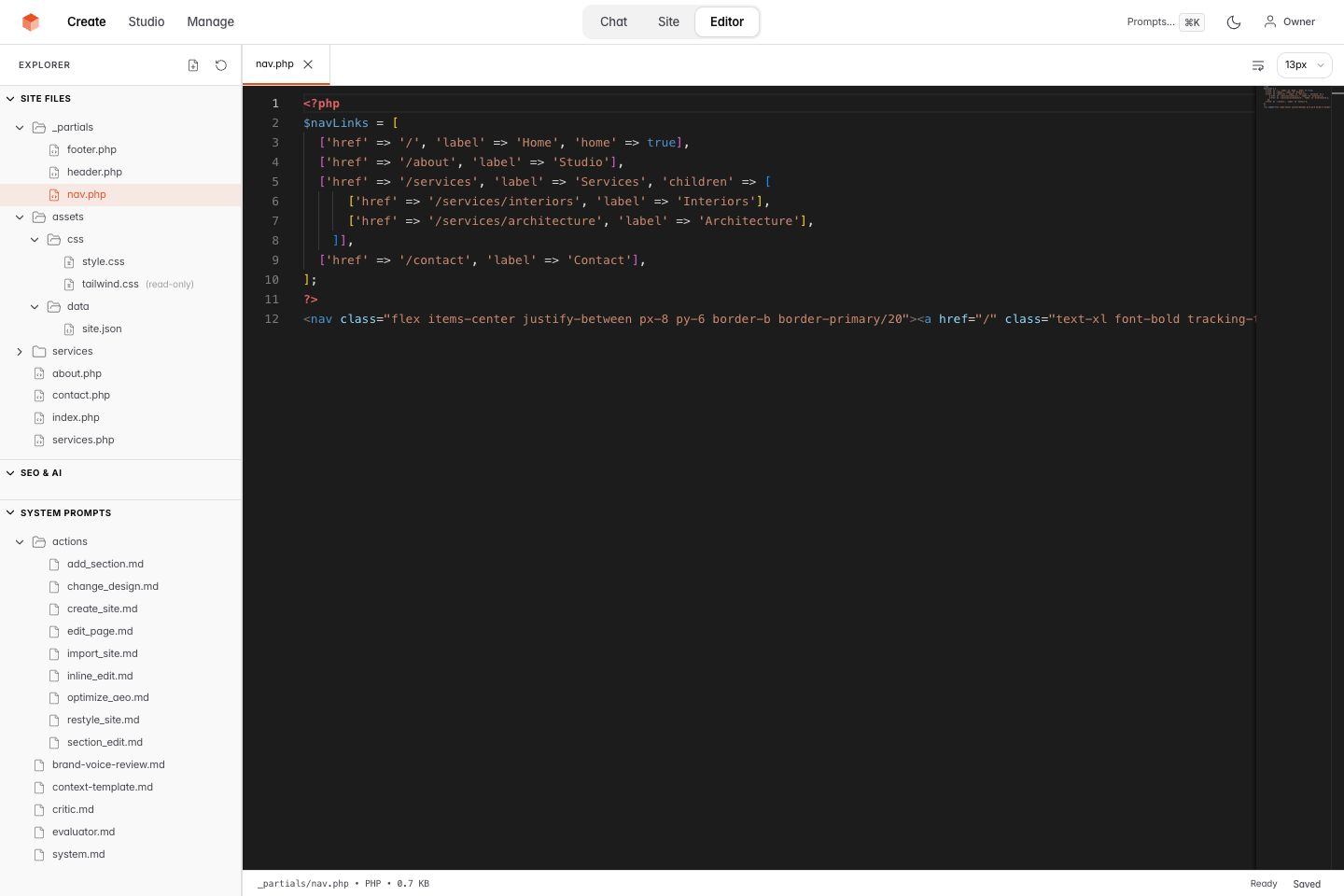
Desktop example: edit the shared navigation source.
Opening the editor
Click Editor in the top navigation bar. The editor opens with a file explorer on the left and a code editing area on the right.
File explorer
The sidebar shows all editable files organized into three sections:
Site files
- Pages - PHP pages, including nested paths such as
services/design.php - Partials - shared includes under
_partials/(header.php, nav.php, footer.php, schema.php) - Styles - CSS files under
assets/css/(style.css, tailwind.css) - Scripts - JavaScript under
assets/js/(main.js, navigation.js, form-handler.js) - Data - JSON configuration under
assets/data/(site.json, memory.json, design-intelligence.json)
SEO & AI
- robots.txt - crawler rules for search engines and AI agents
- llms.txt - plain-text site description for AI language models
These controls edit private _root/robots.txt and _root/llms.txt overrides. Publish places those reviewed overrides at the public root; without an override, it generates the file. See SEO & AI Discovery for details.
System prompts
Internal AI instruction files that control how VoxelSite generates and edits your site. See System Prompts below.
Click any file to open it in the editor. Folders can be expanded or collapsed by clicking them.
Multi-tab editing
Open multiple files at once - each opens in its own tab. Click a tab to switch between files. Close tabs with the × button. Your open tabs, expanded folders, sidebar width, font size, and word wrap preference persist across page navigations within Studio.
In VoxelSite 1.32.0 or later, open tabs follow pages moved or renamed through Site. Deleting a page closes its saved tab. Return to Editor to inspect the current source.
Editing and saving
Make changes directly in the editor. Unsaved changes are indicated with a • dot next to the filename in both the tab and the file tree.
- Save: Click the Save button in the footer, or press
Ctrl+S/Cmd+S - Undo/Redo: Use the Undo and Redo buttons in the footer or standard keyboard shortcuts
After saving, the preview refreshes. CSS changes reload styles without a full page refresh. The save checks the source hash and draft version you opened. If another editor or external tool changed the file, Studio refuses a stale save. Preserve unsaved text, inspect the newer source and reconcile the change before saving.
Studio MCP uses the same retained authoring operations. An interrupted save can be checked or continued without creating a second edit.
Editor controls
The editor toolbar (top-right corner) includes:
- Word wrap toggle - wraps long lines to fit the viewport instead of scrolling horizontally
- Font size selector - choose a comfortable text size (11px-18px)
Both preferences are remembered and restored when you return to the Editor.
Sidebar resize
Drag the divider between the file explorer and code editor to adjust the panel widths. Your preferred width is remembered across page navigations.
Inline AI editing
Highlight any block of code inside the editor and press Cmd+K (or Ctrl+K) to open the AI edit prompt. A floating panel appears - matching the visual editor's design - with a textarea and an inline send button. Type your instruction (e.g., "Make this list responsive" or "Add error handling") and press ⌘↵ to generate, or click the send button.
During generation, a full-page overlay shows real-time progress - the same design used by the visual editor's AI edit:
- Timer - how long the generation has been running
- Current step - what the engine is doing (reading your site, generating, applying changes)
- Token count - how much the AI has produced
- Stop button - cancel generation at any time
Inline AI instructions describe the file type and ask the model to preserve existing patterns. Review PHP, CSS and JavaScript changes before saving the draft.
The result appears as an unsaved draft for review before saving. Save with Cmd+S to keep it, or undo with Cmd+Z to revert.
If you press Cmd+K without highlighting anything, the editor automatically selects the line your cursor is on.
Creating new files
Click the New File button (file-plus icon) in the explorer header. Enter a filename including the path if needed:
contact.php- creates a new pageassets/css/custom.css- creates a CSS file in a subdirectoryassets/js/utils.js- creates a JavaScript file
Supported extensions: .php, .css, .js, .json. Parent directories are created automatically if they don't exist.
Deleting files
Hover over a user-created file in the explorer to reveal the trash icon. Click it and confirm the deletion in the dialog. The file is removed, and Studio records a deletion revision. Open Chat and use Undo to restore that recorded deletion while it remains in history.
Protected system files
Core system files cannot be deleted. These files are needed for your site to function and do not show a delete icon:
| File | Purpose |
|---|---|
index.php |
Homepage |
_partials/header.php |
Site header and <head> |
_partials/nav.php |
Navigation |
_partials/footer.php |
Footer |
_partials/schema.php |
SEO structured data |
assets/css/style.css |
Main stylesheet |
assets/css/tailwind.css |
Compiled Tailwind CSS |
assets/js/main.js |
Core JavaScript |
assets/js/navigation.js |
Navigation behavior |
assets/js/form-handler.js |
Form submission handler |
assets/data/site.json |
Site configuration |
assets/data/memory.json |
AI memory |
assets/data/design-intelligence.json |
AI design context |
Most protected files remain editable. assets/css/tailwind.css is read-only because the PHP compiler generates it.
System prompts
VoxelSite uses Markdown instructions for website generation. Open SYSTEM PROMPTS in the Code Editor to read or customize them.
Core prompts
system.md: The full generation prompt defines code and design rules. Compact editing and read-only routes use separate instructions. See AI Router.context-template.md: The structural blueprint. It maps out dynamic snapshot variables (like capturing the currentheader.phpHTML, CSS properties, or memory JSON variables) to provide context from the existing site.
Action prompts (actions/)
The Studio's backend Action Registry maps user-facing UI tools (like "Create a website" or "Change the design") to highly specific "Action Prompts". VoxelSite combines an action prompt with the full or compact system instructions selected for the task:
create_site.md: Guides the generation of an entirely new website layout across multiple files.change_design.md: Requests token changes for colors and fonts, or HTML utility changes for layout and spacing. It asks the model to preserve existing content unless you request a change.optimize_aeo.md: Directs the AI to focus on AI Engine Optimization (AEO) tasks such as injecting semantic JSON-LD or altering meta tags.edit_page.md: Handles localized document modifications on a single file, and is dual-mapped to both modifying an existing section or adding an entirely new page wrapped in the core layout.inline_edit.md: Powers the inlineCmd+Kcode editor operations. Enforces scope control (modify only what was asked), pattern preservation (match existing code style), and file-type-aware behaviour (different rules for PHP, CSS, JS, and data files).section_edit.md: Powers the visual editor's AI edit. Constrains the AI to modify only the selected element using existing Tailwind classes, preserving the site's design language.add_section.md: Powers the visual editor's section picker. Generates a single new section that matches the site's existing fonts, colours, spacing, and Tailwind patterns.import_site.md: Interprets a reference website's design language and translates it into a new VoxelSite project with clean Tailwind CSS.restyle_site.md: Requests a new visual design using the existing content. Optionally uses a reference URL as design inspiration.
Customizations & updates
The Code Editor saves custom prompt files separately from the supplied defaults. Updates can replace the defaults.
When you edit a system prompt using the Code Editor:
- The Studio preserves the original default prompt untouched inside the core
_studio/prompts/directory. - It saves your custom copy in
_studio/custom_prompts/. - When a generation recipe loads that prompt file through the override loader, it reads your custom copy. Compact routing instructions and Jev classification rules remain code-owned.
The ZIP updater excludes _studio/custom_prompts/. Keep a backup of your overrides when updating or moving the installation.
To use the supplied prompt again, hover over the custom prompt and click Reset to default. This removes the override file.
Keyboard shortcuts
| Shortcut | Action |
|---|---|
Ctrl/Cmd + S |
Save current file |
Ctrl/Cmd + Z |
Undo |
Ctrl/Cmd + Shift + Z |
Redo |
Ctrl/Cmd + K |
Inline AI edit (select code first) |
Tips
- Use the editor for quick fixes. For full control, download your site and edit in your preferred IDE.
- The AI can also edit files. Describe changes in the Chat panel and the AI will modify the code for you.
- Data files are viewable. The
assets/data/JSON files let you inspect what the AI knows about your site - its memory, design decisions, and site configuration.
Related
- Chat - Describe changes in natural language and the AI modifies the code for you
- Visual Editor - Click-and-edit elements visually, including AI-powered section editing
- How Prompting Works - What happens under the hood when you use
Cmd+Kor any AI action - Download & Export - Download your site as PHP or static HTML
- SEO & AI Discovery - Edit robots.txt and llms.txt in the SEO & AI section
- Undo & Snapshots - Roll back any change
Found a mistake in these instructions? Open an issue.
Download VoxelSite