Assets
Upload and organize website images and files in Studio. Insert an asset into a page or reference it in an AI prompt.
Upload images and files to Assets, then insert them into your pages or reference them in Chat. The files stay on your server.
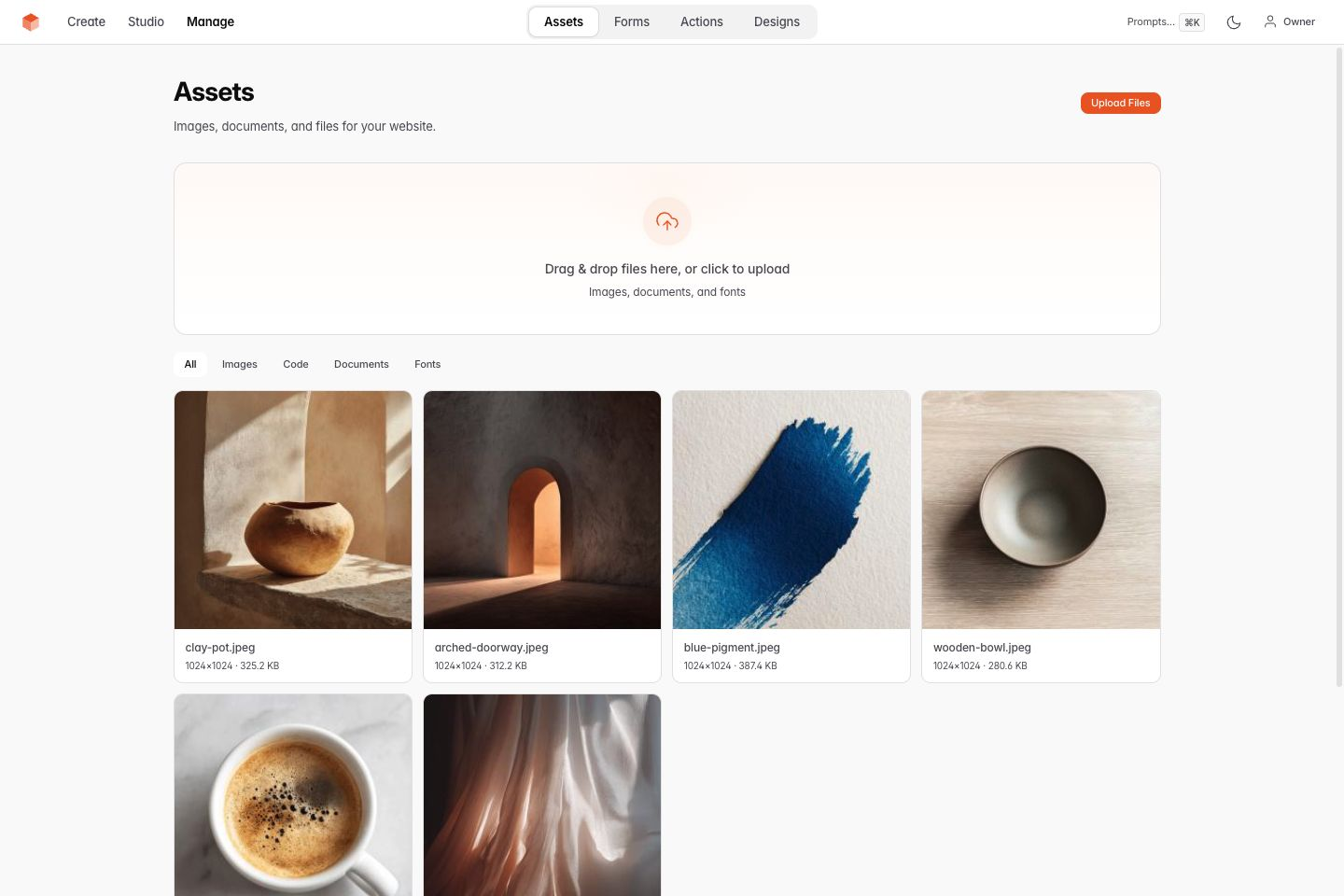
Desktop example: uploaded website images.
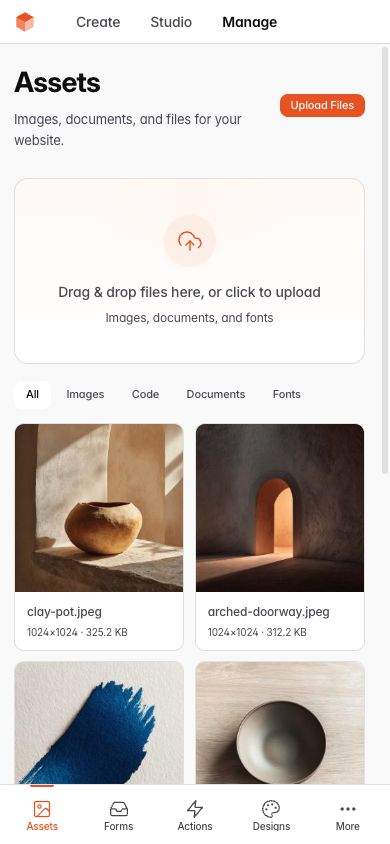
Phone example: browse and upload the same assets.
Uploading
Upload files by:
- Drag files into the Assets drop zone.
- Click Upload Files or the drop zone to choose files from your computer.
Studio stores uploads under _studio/preview/assets/ in the private draft. The paths shown in the editor are relative to that draft:
| Type | Directory |
|---|---|
| Images | assets/images/ |
| Files (PDF, etc.) | assets/files/ |
Using assets in your site
When the AI builds or edits your pages, it sees your uploaded assets and can reference them. Tell it:
- "Use the logo I uploaded for the header"
- "Add the team photos to the about page"
- "Put the PDF menu in the footer as a download link"
Check the preview to confirm the AI used the files you requested.
Managing assets
From the Assets tab you can:
- Browse image thumbnails and a list of other files.
- Filter with All, Images, Code, Documents or Fonts.
- Check file sizes, image dimensions and upload dates.
- Delete files you no longer need.
Uploads, moves and deletions change the private draft. Check the reference review before moving or removing an asset. Published files change only when you publish the reviewed website. Independent changes to managed live assets can block publication instead of being overwritten.
Organized structure
Studio groups draft assets in these relative directories:
assets/images/- Photos, logos, graphicsassets/files/- PDFs, documents, downloadsassets/icons/- shipped read-only Lucide iconsassets/data/- Structured JSON data (AI-generated)assets/css/- Stylesheets (AI-generated)assets/js/- JavaScript files (AI-generated)
When no images are uploaded
VoxelSite includes 132 library images. The AI receives filename details about their subject, tone and category when choosing images.
The prompt tells the AI to prefer suitable uploads. Ask it to use a specific file, then check the preview.
See Image library for filenames. External tools use scoped upload and asset operations; see Tools and coverage.
Found a mistake in these instructions? Open an issue.
Download VoxelSite