Designs
Save a website as a named design, try another direction and load an earlier design. Check what each save includes.
Save your website as a named design before trying a different layout. The Design Library lets you load a saved design and return to that version's files.
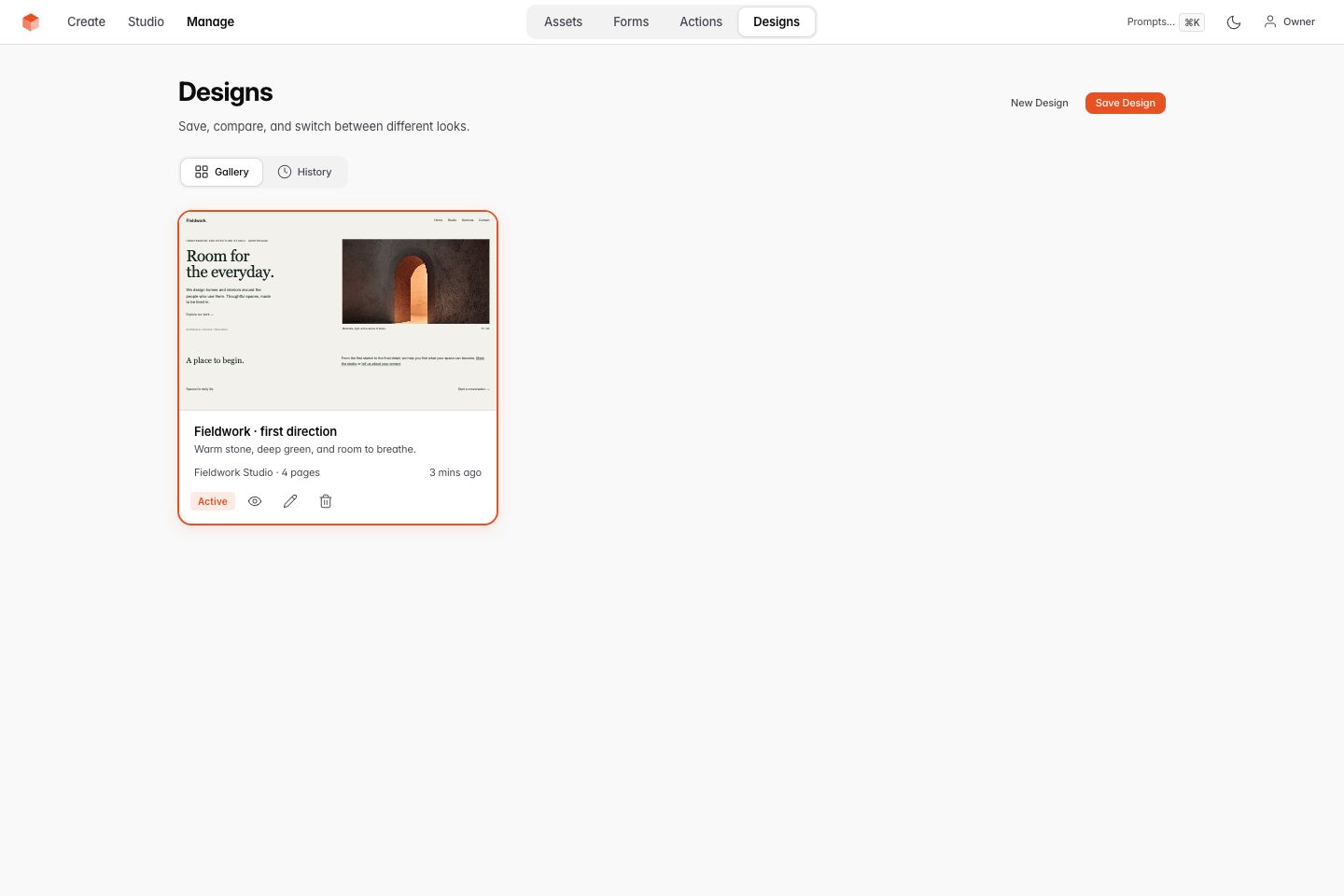
Desktop example: a named design in the Gallery.
What gets saved
A saved design contains these website files:
- Pages - all your PHP/HTML content files
- Styles - CSS design tokens, compiled Tailwind utilities and permitted structural CSS
- Scripts - JavaScript files
- Data - structured content, memory, site data
- Forms - form definitions and validation rules
Uploads remain available in the private draft when you switch designs. Action definitions and live business records are separate from saved website designs.
Saving a design
Three ways to save:
- From the preview toolbar - click Save above the live preview (between Refresh and the external-link icon). The button is available when a previewable site exists and the toolbar is enabled
- From the Designs page - click Save Design, give it a name and optional description
- After AI generation - a "Save to Designs" shortcut appears below the file list in the chat
All three open the same Save Design modal where you name the design and add an optional description. Saved designs appear in the Gallery as preview cards showing the design's colors, page count, and creation date.
The Save toolbar button is disabled when no site exists yet. It enables automatically after your first generation or when you load a design. During AI generation or visual editing, the button is grayed out along with the other toolbar controls.
Loading a design
Click the Load button on any design card. Loading changes the private draft, including design source and page metadata; it does not publish. A confirmation modal asks whether to save your current design first:
- Checkbox checked - your current work is saved to the library before switching
- Checkbox unchecked - your current work is discarded
The Studio remembers your last choice. After loading, the Chat view opens with your restored design in the live preview.
Starting fresh
Click Start a new design from scratch in the Chat panel or New Design on the Designs page. The same confirmation modal appears - save first, or start clean. When you start fresh, the design source in the private workspace is cleared and the Chat shows the "What are we building?" prompts, ready for a new site.
Undo history
Design transitions retain their reviewed changes and recovery history. Inspect the selected revision or snapshot before restoring; do not assume a design switch deletes the earlier recovery record.
Active design
The currently loaded design shows an Active badge and amber border in the Gallery. The active design ID is tracked so you know which design you're working on.
Editing saved designs
Click the pencil icon on any design card to rename it or update its description. Changes are saved immediately.
Deleting designs
Click the trash icon on any design card. A confirmation dialog prevents accidental deletions. Deletion is refused while active or retained history needs the design. Inspect the result before removing another saved direction.
Design vs. snapshot
Designs and Snapshots serve different purposes:
| Designs | Snapshots | |
|---|---|---|
| Purpose | Explore different directions | Safety checkpoints |
| Created | Manually, when you want to save a direction | Manually, before publish, or for recovery |
| Contains | Full website (pages, styles, scripts, data, forms) | Saved website files |
| Use case | "I want to try a dark theme version" | "Save my progress before a big change" |
| Location | Designs tab (Gallery) | Designs tab (History) |
Use snapshots to restore saved files and designs to keep different versions of a website. Choose the snapshot domain before restoring. A draft restore changes private pages and assets; a published restore changes the live website and keeps newer draft work. See Undo & snapshots for the restore boundaries.
Internal backups
Studio creates internal design backups in these situations:
- Before a restyle - when you attach a design reference URL and generate, your current design is saved first
- Before switching designs - if you load a different design without saving, VoxelSite auto-saves your work
- Before starting fresh - clearing the workspace auto-saves your current state
These backups do not appear in the normal Gallery or snapshot History. Save a named design or create a manual snapshot before experimenting so you have a visible restore point.
Related
- Undo & Snapshots - Per-action undo and point-in-time restore
- Chat - The AI conversation panel
- Design System - How VoxelSite handles colors, typography, and tokens
Found a mistake in these instructions? Open an issue.
Download VoxelSite