Actions
Create forms that visitors and connected AI agents can submit. Configure fields, validation, notifications and submission storage.
Create an action for visitors or connected AI agents to submit information, such as a reservation or callback request. Use an owner or editor account to define fields and manage responses in Studio.
Visitors use the form; connected AI agents call its MCP tool. Both use the same validation and submission storage. Action definition changes take effect when saved. Actions Bar appearance and site configuration stay in the private draft until publication.
Publish the site once to install the Actions Bar. After that, saved Action definitions take effect without another publish. Publish changes to the Bar’s site-level appearance and configuration separately. Actions and MCP action tools require Studio.
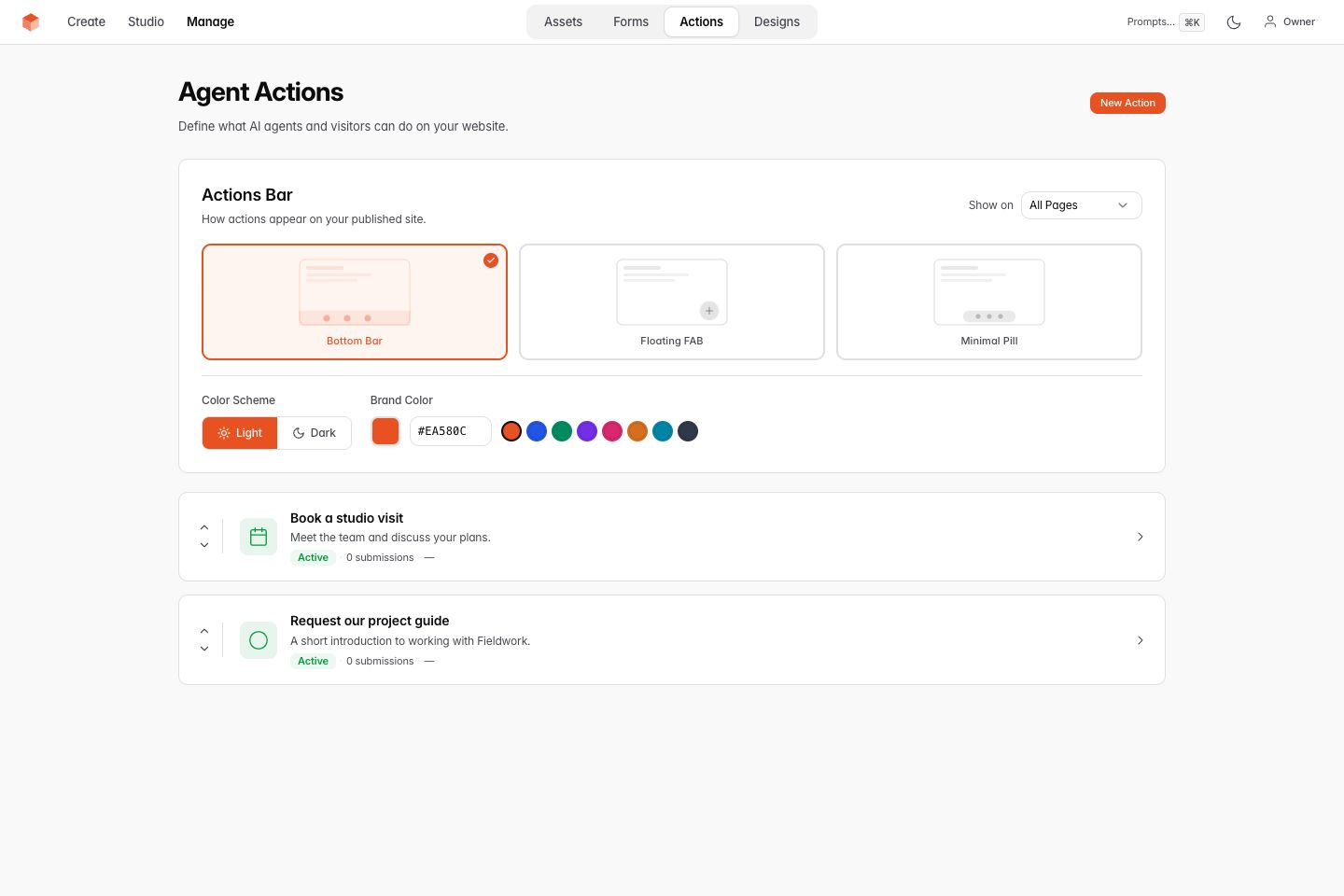
Desktop example: choose how visitors see the Actions Bar.
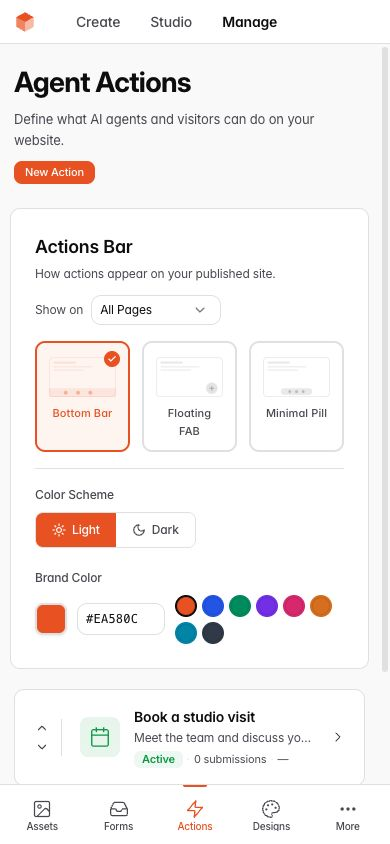
Phone example: the Actions Bar settings adapt to the screen.
Creating an action
Open Actions, then click New Action. Start from scratch or choose a template:
- Contact form
- Newsletter signup
- Table reservation
- Appointment booking
- Event registration
- Callback request
- Quote request
- Feedback form
- Waitlist
Enter the action name. Visitors see it as the form title, and notification subjects include it. Choose an icon. Add a description if visitors need more context below the title. Then add the form fields.
If the action name is long, enter a Button Label in the Actions Bar settings. An empty label uses the action name. For example, name an action "Contact us" and use "Contact" on its button. Click Save Changes to save the action settings.
Field builder
Each action has a list of fields. Use the field builder to add, reorder, and configure them.
Supported field types
| Type | Description |
|---|---|
| Text | Single-line text input |
| Email address with format validation | |
| Phone | Phone number with format validation |
| Number | Numeric input with +/− stepper and optional min/max |
| Date | Date picker (can require future dates only) |
| Time | Time picker |
| Select | Dropdown menu |
| Multi-select | Checkbox group - visitors pick multiple options |
| Radio | Radio buttons (switches to dropdown automatically if more than 4 options) |
| Checkbox | Single on/off toggle |
| Textarea | Multi-line text |
| URL | Web address with format validation |
| File | File upload with extension filtering and size limits |
| Hidden | Not shown to visitors - useful for tracking codes |
Field settings
Click the gear icon on any field to configure:
- Placeholder - hint text shown inside the empty field
- Default Value - pre-filled value (not shown for file or checkbox fields)
- Help Text - short description shown below the field
- Minimum / Maximum - for number fields
- Max Length - character limit for text fields
- Options - for select, radio, and multi-select fields
- Value - for checkboxes: the value sent when checked (defaults to the field name)
- Selected by default - for checkboxes: whether the checkbox is pre-checked
- Allowed File Types - for file fields: choose document, image, or archive groups, or list specific extensions
- Max File Size (MB) - for file fields: maximum upload size in MB (up to 50 MB)
Click Apply in field settings, then Save Fields on the action to save field changes.
Defining options
For select, radio and multi-select fields, enter one option per line. Option names can contain commas and special characters.
For multi-select fields, prefix an option with [x] to make it selected by default:
Vegetarian
[x] Vegan
[x] Gluten-free
Dairy-free
Nut-free
In this example, Vegan and Gluten-free are checked by default when the form loads.
Validation
Turn on Required for fields visitors must complete. VoxelSite checks each value by its field type:
- Email - must be a valid email address
- Phone - must be a valid phone number
- URL - must be a valid web address
- Number - must be within min/max range
- Date - can require a date in the future
- Multi-select - when required, at least one option must be checked
- Text / Textarea - optional maximum character length
The browser shows field errors. The server checks submitted values. The MCP tool schema also describes the constraints for connected agents.
File upload checks
VoxelSite checks uploaded files before storing them:
- Extension whitelist - only the extensions you allow are accepted
- File signature check: compares supported file signatures with the declared type
- Size limit - configurable per field, hard-capped at 50 MB
- Storage:
_data/uploads/actions/. Apache uses the supplied.htaccessprotection. On Nginx, deny access to_data/before accepting uploads. Studio provides authenticated downloads.
The actions bar
Active actions appear in a bar at the bottom of the published pages. Select an action to open its form.
After the initial publish, saved Action definitions update the public manifest using the published site configuration. Draft opening hours and Bar configuration do not leak into that update. Publish the draft to activate site-level configuration changes. Reload a published page to check the form.
If an upgraded installation asks you to migrate legacy Bar settings, inspect the preserved values in Studio and save them explicitly. Publication stays blocked until that conflict is resolved.
The Actions Bar:
- Supports dark mode (light, dark, or auto based on system preference)
- Offers three layout variants: bottom bar, floating action button, or minimal pill
- Adapts to mobile screens and touch targets
- Includes messages in 31 languages, selected from the visitor's browser language
- Includes keyboard navigation and focus indicators
AI agent integration
Connected agents discover active actions through these public endpoints:
| Endpoint | Purpose |
|---|---|
/actions/manifest.json |
JSON manifest with all active actions and their fields - readable in any browser |
/mcp.php |
MCP endpoint for AI agents - supports tools/list and tools/call |
AI assistants can:
- Call
tools/liston/mcp.phpto discover actions. - Read the tool schema for field requirements, rules and options.
- Call
tools/callwith the action name and arguments to submit data.
What agents see
Each action becomes an MCP tool named make_[action_id]. For example, an action with ID reservation becomes make_reservation. This example shows a tools/list response schema:
{
  "name": "make_reservation",
  "description": "Reserve a table at the restaurant",
  "inputSchema": {
    "type": "object",
    "properties": {
      "name":   { "type": "string", "description": "Name" },
      "date":   { "type": "string", "description": "Date (must be in the future)" },
      "time":   { "type": "string", "description": "Time" },
      "guests": { "type": "number", "description": "Guests", "minimum": 1, "maximum": 12 }
    },
    "required": ["name", "date", "time", "guests"]
  }
}
Open an action and check Agent Preview to see its current schema.
Verifying your actions
Open https://example.com/actions/manifest.json, using your domain. Check the active actions, fields and constraints. Saved action changes update this manifest without another publish.
Connect a compatible client to this public endpoint for visitor interactions. Authenticated Studio MCP at /_studio/mcp.php manages the site and business records; it uses separate credentials. Your published llms.txt also lists available actions.
Managing submissions
Open an action to read its stored submissions. These are live business records, separate from website snapshots. Studio MCP business tools share record versions and stable retries with Studio.
Available controls:
- Filter by status (new, confirmed, completed, cancelled)
- View full submission details, metadata (IP, browser, timestamp), and timeline
- Update the status of individual submissions
- Export all submissions to CSV
- Delete individual submissions
- Purge old submissions in bulk - choose from 3 days to 1 year
Submission rules
Open the action settings to control repeated submissions:
- Turn off Same email can submit multiple times to reject repeated submissions from an email address. Set the message visitors see when blocked.
Publishing
The first publish installs the Actions Bar on published pages. Later definition saves update its manifest without another publish. Bar configuration still needs a reviewed website publication. On an already published site, activating a draft makes it available to visitors. To activate it, click ○ Draft — click to go live. Test the published form after changing fields or activation.
Unpublishing removes the published site entry pages and their Actions Bar.
Related
- Forms - traditional schema-driven forms (contact, booking)
- SEO & AI discovery - how
llms.txtand MCP make your site AI-readable - Publishing - what happens when you publish
Found a mistake in these instructions? Open an issue.
Download VoxelSite